
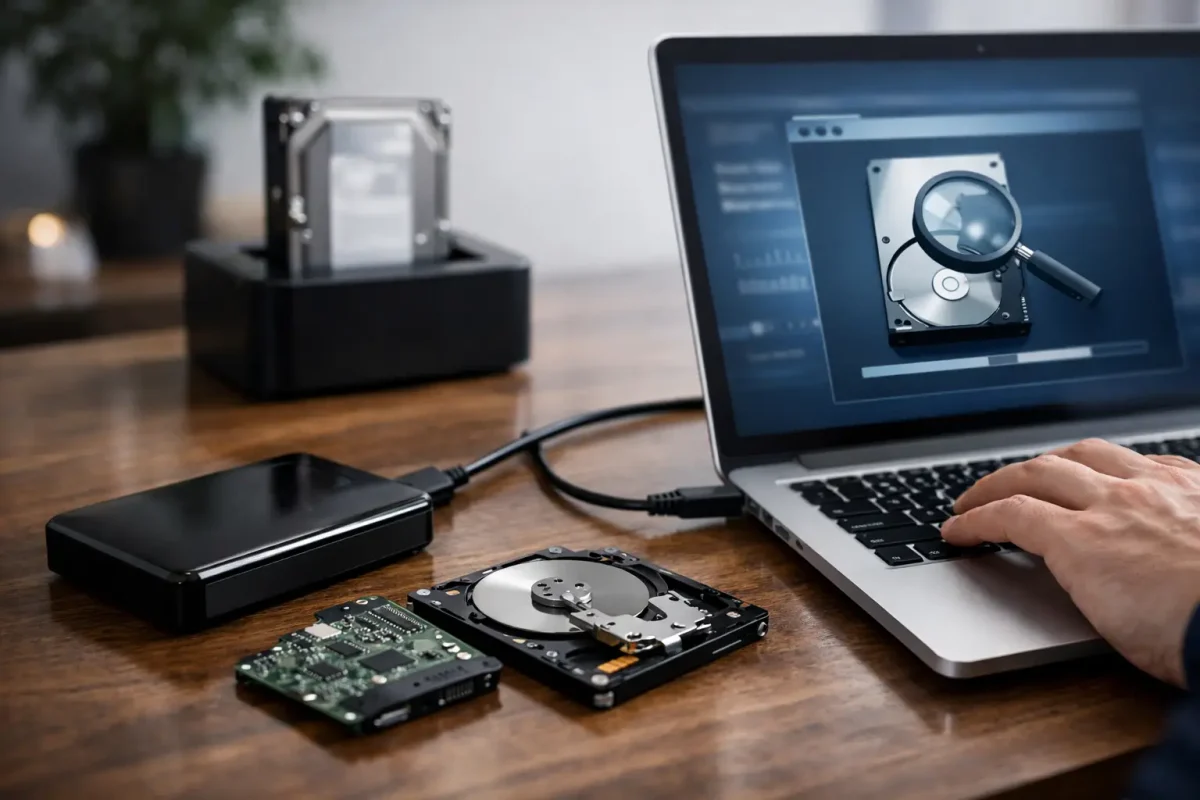
A corrupted external hard drive can turn a routine file transfer into an immediate business, financial, or personal data crisis. Whether the drive contains client records, family photos, wallet backups, tax documents, or evidence related to a security incident, the first goal is not to recover corrupted external hard drive data as quickly as possible. It is to prevent the damage from getting worse.
A drive that suddenly asks to be formatted, appears as RAW, disconnects without warning, or shows folders with unreadable names may still contain recoverable information. But continued use, improvised repairs, and repeated restart attempts can overwrite data or accelerate a physical failure. A calm, evidence-preserving response gives you the best chance of a successful result.
What External Drive Corruption Actually Means
“Corruption” describes a problem with the way a computer reads the drive, its file system, or its stored data. It does not always mean the files are gone. In many cases, the data remains on the drive, but the operating system no longer has a reliable map to locate it.
Logical corruption is common after an unsafe ejection, interrupted transfer, unexpected power loss, malware activity, a damaged partition table, or a file-system error. The drive may be physically healthy but inaccessible through normal methods.
Physical failure is more serious. A hard drive may develop bad sectors, motor problems, damaged read-write heads, or internal component issues. External drives can also fail because of a damaged USB cable, enclosure, power adapter, or port. Solid-state external drives have different failure patterns, including controller faults and degraded flash memory.
The distinction matters because software tools may help with a logical problem, while a physically unstable drive needs a controlled recovery environment. Treating a mechanical failure like a simple file-system error can permanently reduce what is recoverable.
Signs You Should Stop Using the Drive
Some warning signs call for immediate restraint. If the drive is clicking, grinding, beeping, overheating, repeatedly disconnecting, or taking an unusually long time to appear, stop running scans and stop copying files. Those symptoms can indicate a physical issue, and every additional read attempt may strain failing components.
You should also pause if the drive contains sensitive business information, cryptocurrency recovery phrases, private keys, legal records, customer data, or files connected to suspected fraud. Recovery work should preserve confidentiality and avoid exposing sensitive material to unverified software, public upload services, or unauthorized technicians.
Do not format the drive simply because your computer recommends it. Formatting can change file-system structures and complicate recovery. Do not initialize a disk that suddenly appears as unallocated, and do not install recovery software onto the affected drive. Write activity can overwrite the very data you need to retrieve.
First Checks Before You Attempt Recovery
Start with the least invasive checks. Disconnect the drive safely, then inspect the cable, power supply, and enclosure for obvious damage. If the drive has a separate power adapter, use the original compatible adapter whenever possible. An underpowered drive may spin up inconsistently or disappear during use.
Try a different known-good cable and a different USB port. If you test another computer, use one you trust and avoid devices that may have malware or unknown security settings. A drive that works through a different cable or enclosure may not be corrupted at all – the connection hardware may be the problem.
If the drive opens normally, copy the most important files first to a separate healthy storage device. Do not reorganize folders, rename large batches of files, or run cleanup utilities before creating a backup. Prioritize irreplaceable records over large media libraries that may be easier to recreate.
For businesses, document the time the issue was discovered, the systems involved, the error messages shown, and every recovery action taken. This record helps preserve accountability and can be valuable if the failure is tied to ransomware, insider activity, or a broader cybersecurity incident.
How to Recover a Corrupted External Hard Drive Without Making It Worse
If the drive is recognized consistently, makes no abnormal sounds, and does not show signs of physical distress, a careful logical recovery process may be appropriate. The safest approach is to work from a forensic image or clone of the drive rather than performing repair operations on the original.
Create a Read-Only Copy First
A sector-by-sector image captures the drive’s current state before repair attempts alter metadata or trigger further errors. Professional recovery teams use controlled systems designed to minimize writes to the source device and document the recovery process.
For a consumer with basic technical knowledge, the practical principle is simple: preserve the original and recover from a copy whenever possible. If the drive is unstable, do not force the imaging process at home. A failing drive may require specialized hardware that can manage read errors and avoid repeated stress on damaged areas.
Identify the Type of File-System Problem
A drive may appear as RAW, inaccessible, unallocated, or assigned a missing drive letter. These conditions can result from partition damage, file-system corruption, encryption problems, or a failed enclosure. The right response depends on the cause.
Operating-system repair utilities can sometimes correct minor file-system errors, but they are not risk-free. A repair command may modify directory entries, remove damaged records, or make choices that are acceptable for routine maintenance but harmful when the data is high value. If you have only one copy of essential files, image the drive before attempting repairs.
Recover Files to a Different Device
Any recovered files should be saved to separate, healthy storage. Never recover data back onto the corrupted external drive. After recovery, review important documents, photos, databases, and archives individually. A file that opens is not always complete, especially after a drive experienced bad sectors or interrupted writes.
For cryptocurrency-related files, verify recovered wallet backups and records offline and cautiously. Never share a seed phrase, private key, password, or recovery file with anyone who cannot clearly establish a legitimate, authorized recovery process. A data-loss event often creates an opening for impersonation and social engineering scams.
When Professional Recovery Is the Safer Choice
Professional support is warranted when the drive clicks, fails to mount, is encrypted, contains critical records, has been exposed to water or impact, or may be connected to a cyberattack. It is also the better option when a DIY attempt could create unacceptable consequences for your business, finances, privacy, or legal obligations.
A qualified recovery process should begin with an assessment, clear authorization, and an explanation of the likely risks. The provider should protect the chain of custody for sensitive devices, use secure recovery environments, limit unnecessary access to data, and provide transparent reporting on what was found and what can be recovered.
Skyline Tech Support approaches sensitive recovery cases through authorized technical analysis, confidential handling, and a recovery strategy matched to the device’s condition. For a drive tied to suspicious activity, the technical task may extend beyond restoring files. It may also involve determining whether malware, unauthorized access, deletion activity, or data exfiltration contributed to the loss.
Protect the Recovered Data From a Second Failure
Recovery is only part of the job. Once important data is available again, place it in at least two separate locations, with one copy kept offline or isolated from your primary device. For businesses, access controls and tested backup procedures matter as much as the backup itself.
Encrypt portable drives that store financial files, customer information, identity documents, or wallet-related records. Keep recovery keys separate from the drive, and document who has authorized access. A secure backup that no one can locate or decrypt during an emergency is not a complete continuity plan.
Also investigate why the corruption happened. A single unsafe unplug may be an isolated event. Repeated corruption, however, can point to failing hardware, unstable power, malware, poor backup practices, or an insecure workstation. Resolving the underlying cause protects more than the recovered files.
Frequently Asked Questions
Can a corrupted external hard drive be fixed without losing data?
Sometimes. If the issue is logical and the drive is physically stable, the data may be recoverable before repairs are attempted. The safest path is to preserve the original drive, create an image when possible, and recover files to a separate device. There is no guarantee, especially when the drive has been used after the corruption occurred.
Should I use a free recovery tool?
Free tools can help with low-risk, noncritical cases, but they can also encourage repeated scans and unsafe repair attempts. Avoid them if the drive makes unusual noises, contains highly sensitive information, or stores data with financial, legal, or operational value. The cost of a mistaken write operation can exceed the cost of professional assessment.
Why does my computer ask me to format the drive?
Your computer may be unable to read the file system or partition information. Formatting may make the drive usable again, but it does not address the reason it became unreadable and can complicate file recovery. Do not format until you have assessed the recovery value of the data.
The most useful next step is usually the most controlled one: stop unnecessary activity, preserve the device’s condition, and choose a recovery method proportionate to what the files are worth to you.
